
This tutorial shows you how to set up Microsoft Outlook 2003 to work with your e-mail account. You can set up previous versions of Microsoft Outlook by using the settings in this tutorial. For tutorials on setting up your Email in Microsoft Outlook 2007 or Microsoft Outlook Express®, please see our other Knowledgebase Email Help Guides.
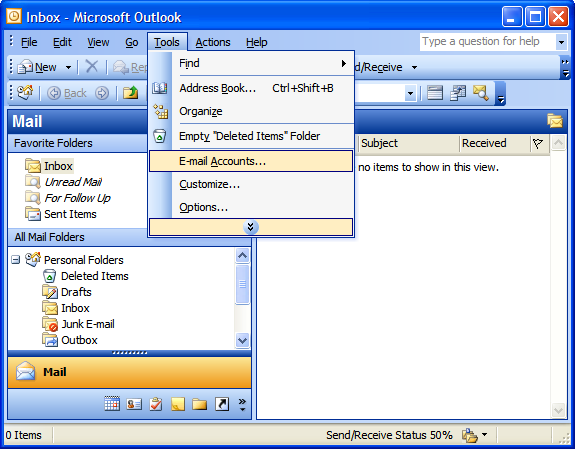
Step 1: In Microsoft Outlook, from the E-mail Accounts menu, select Tools.
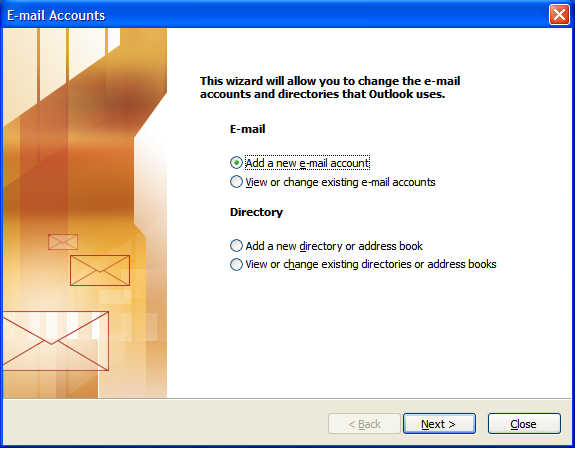
Step 2: On the E-mail Accounts wizard window, select Add a new e-mail account, and then click Next.
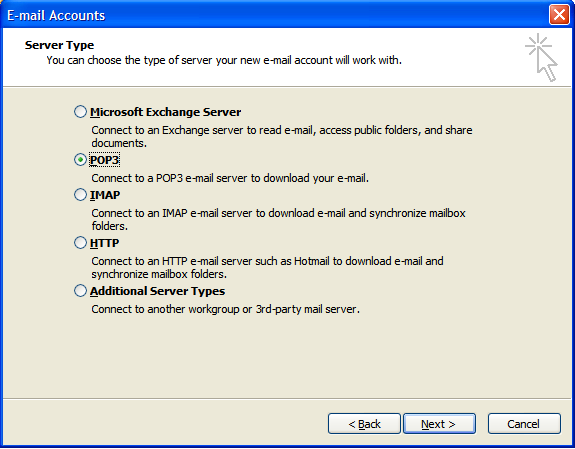
Step 3: For your server type, select POP3 and then click Next.
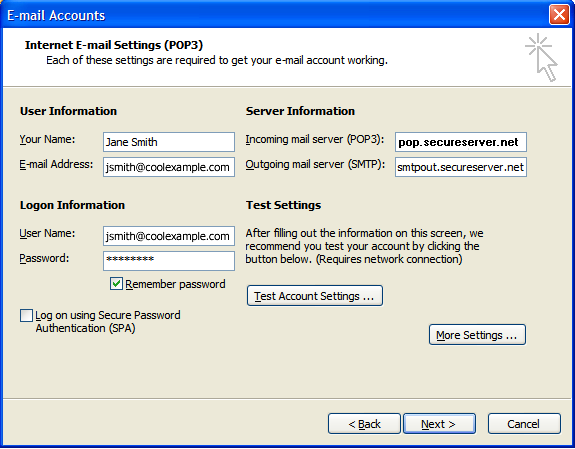
Step 4: On the Internet E-mail Settings (POP3/IMAP) window, enter your information as follows:
Your Name
Your first and last name.
E-mail Address
Your full Email address.
User Name
Your full Email address, again.
Password
Your Email account password supplied to you by Quikclicks.
Incoming mail server (POP3)
“mail.your-domain.com.au” (where ‘your-domain.com.au is replaced with your actual Domain Name.
Outgoing mail server (SMTP)
“your-outgoing-mail-server” (where ‘your-outgoing-mail-server is replaced with your specific Internet Provider’s Outgoing Mail
Server (EG. “mail.bigpond.com” if you use Telstra Bigpond to connect to the Internet, “mail.optusnet.com.au” for Optus,
“mail.tpg.com.au” for TPG, etc). Click here for more help.
Step 5: Click Next.
6. Click Finish.
Removing message copies from the web server
Step 1: On the Tools menu, click E-mail Accounts
Step 2: Click View or change existing e-mail accounts, and then click Next.
Step 3: Select your account, and then click Change.
Step 4: Click the More Settings button.
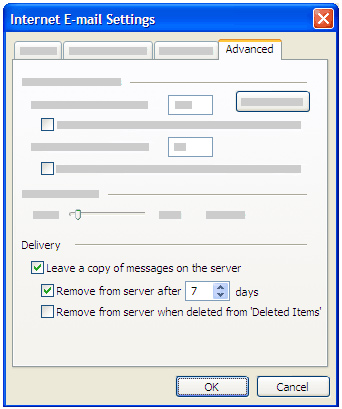
Step 5: Click the Advanced tab, and under Delivery, select the Leave a copy of messages on the servercheck box.
Step 6: Select the Remove from server after x days and type in a value of 7 (days). This will tell the server to download all E-mail messages to your computer but only leave a copy of the messages on the web server for a certain number of days. This is the most common setting for people who want to read their messages at work but also download them for permanent storage on their home computer. We recommend that you choose the smallest number of days that suits your needs. The longer you leave messages on your e-mail server, the greater the risk of filling-up your web server storage and exceeding your mailbox size quota.
Step 7: Click OK, and then click Finish.